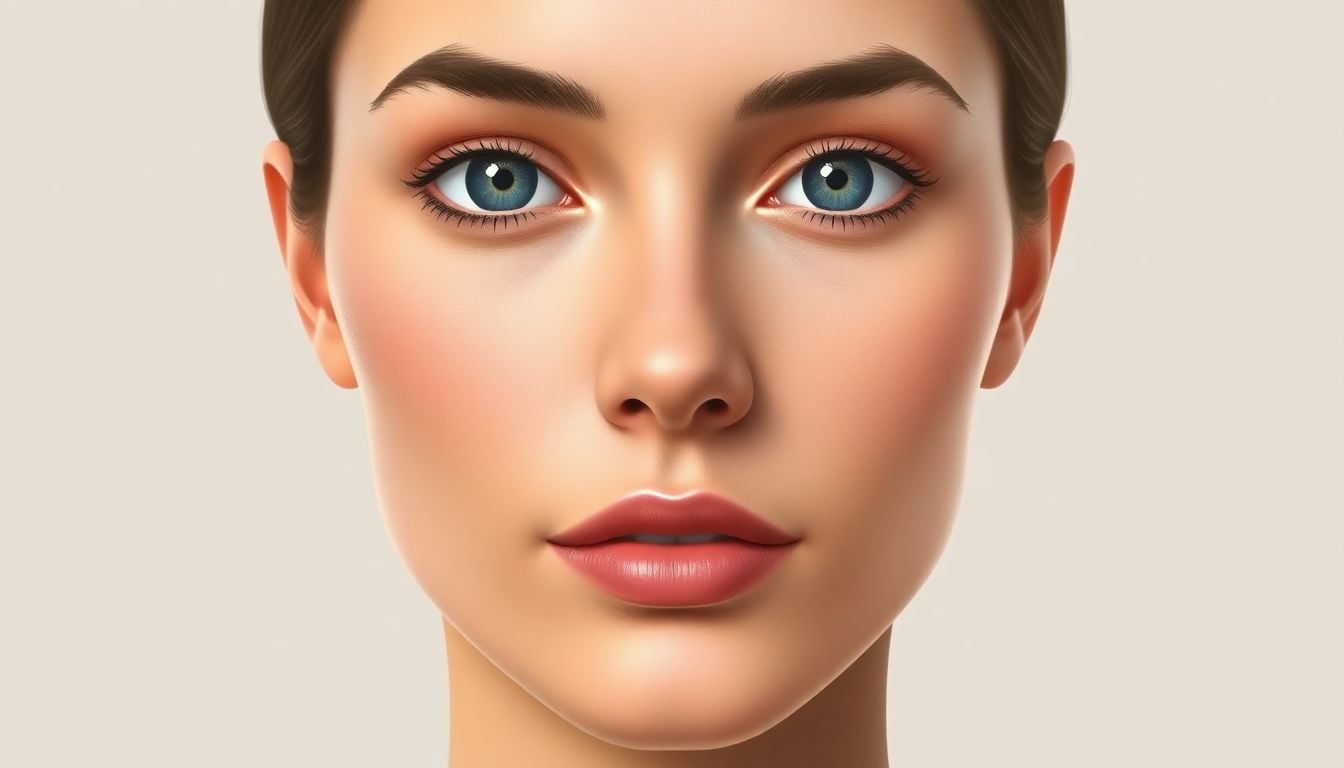
Complete AI Prompt Pack
1000+ prompts • $37
I get it—trying to create realistic portraits with AI can feel like hitting a moving target. Maybe your images come out a little off, or you’re unsure which settings really make a difference. But don’t worry, I’ve got you. Keep reading, and you’ll find simple tips and clear steps to help your AI generate stunning, lifelike portraits.
In just a few minutes, you’ll learn how to tweak resolution, choose the right lighting, and craft prompts that bring your portraits to life. We’ll cover the best options to set your AI, so you don’t have to guess anymore.
Ready to make your AI portraits look like photos? Let’s get started—it’s easier than you think.
Key Takeaways
- Set resolution to at least 1024×1024 pixels for detailed AI portraits.
- Increase sampling steps to 50-75 for finer details in your images.
- Adjust the CFG scale to around 8 for a natural look without losing adherence to prompts.
- Disable artistic filters to achieve more realistic skin tones and textures.
- Use specific prompts that include age, ethnicity, and lighting to guide AI effectively.
- Generate multiple variations and choose the best one for further refinement.

Best AI Settings for Creating Photorealistic Portraits
Getting a truly lifelike portrait from AI doesn’t just hinge on choosing the right model—it’s about tuning the settings for maximum realism. First, aim for high-resolution outputs; setting the resolution to at least 1024×1024 pixels ensures you have enough detail to work with. Next, adjust the sampling steps—more steps generally lead to finer details, so bump it up to around 50-75 steps if possible. The guidance scale or CFG (Classifier-Free Guidance) scale is crucial; a higher value (like 7-10) helps keep the image aligned with your prompt, but too high can cause loss of natural variation. Choosing an appropriate style preset or disabling artistic filters can seem counterintuitive, but often turning off stylized effects results in more realistic skin tones and textures. Lastly, enable the ‘high fidelity’ or ‘detail’ mode if your AI tool offers it—this emphasizes finer textures such as skin pores, eyelashes, and hair strands, making the portrait feel more three-dimensional. Incorporating these settings can transform generic AI images into convincing lifelike portraits that capture subtle nuances like shadows, highlights, and natural imperfections.
Step-by-Step Guide to Setting Up AI for Realistic Portraits
Start by selecting a model known for producing detailed images—preferably a trained version for portrait creation. Set your resolution to at least 1024×1024 for sharpness. Next, incrementally increase the sampling steps to around 50-75 to enhance detail without prolonging processing time excessively. Adjust the guidance or CFG scale to about 8 for a good balance between adherence to your prompt and natural variation. For initial prompts, keep the description focused on realistic features—think “a highly detailed portrait of a middle-aged man with natural skin tones, subtle facial features, and soft lighting.” Before generating, review pre-set styles and disable any artistic filters that might push results toward stylization rather than realism. Fine-tune the parameters based on testing—if faces seem blurry or unnatural, increase the sampling steps; if skin looks unnatural, reduce CFG scale slightly. Finally, always generate multiple variations and select the best for post-processing or further refinement.
How to Adjust Resolution and Detail for Photorealism
The secret to sharp and realistic AI portraits lies in resolution and detail settings. When you start, set your resolution at 1024×1024 pixels or higher; this provides enough pixel information to capture subtle features like pores and fine hair strands. If your AI platform allows, choose the highest available resolution—some tools even support 4K outputs for extreme detail. To enhance detail, increase the sampling steps—aim for 50 to 75—so the AI has more iterations to refine textures. Using higher guidance scales (around 8-10) can also improve adherence to the prompt, resulting in clearer details. Remember, higher resolution and detailed processing demand more time and computing power, so test your setup with smaller sizes before committing to full-size images. When working with the output, consider sharpening or slight touch-ups in an editing app to bring out subtle features without overdoing it, preserving the natural look.”

Creating Effective Prompts for AI Portraits
One of the quickest ways to get better results from your AI is by giving precise and detailed prompts. Clear instructions help the AI understand exactly what kind of image you’re aiming for. Here are some prompt ideas you can copy and use directly in ChatGPT to generate better portrait descriptions:
- Describe a hyper-realistic portrait of a woman in natural daylight, showing detailed skin texture, soft smile, and subtle freckles. Focus on capturing the warm tones and gentle shadows.
- Create a lifelike image of an elderly man with a gentle expression, realistic wrinkles, gray hair, and a neutral background. Emphasize skin pores, eye reflections, and hair strands.
- Generate a high-detail portrait of a young woman with curly hair, bright eyes, and a natural pose. Include specific lighting like softbox or golden hour sunlight, with realistic skin tones and shadows.
- Design a photo-realistic studio portrait of a middle-aged man wearing casual clothes, with detailed facial features, natural skin texture, and a blurred background. Make the lighting soft and flattering.
- Produce a detailed portrait with accurate representation of ethnicity, including skin tones, hair texture, and facial features. Add subtle imperfections like moles or acne for realism.
Advanced ChatGPT Prompts for High-Quality Portrait Descriptions
If you want more in-depth prompts to generate even better instructions for AI, try these commands. These are ready to copy-paste into ChatGPT to get detailed, realistic portrait descriptions you can plug into your AI tool:
- Write a photorealistic portrait prompt describing a 30-year-old woman with olive skin, dark eyes, and curly hair, with an emphasis on natural lighting, fine skin details, and a neutral background.
- Generate a detailed prompt for a male model in his 50s with weathered skin, silver hair, and a thoughtful expression, emphasizing realistic textures, subtle shadows, and natural pose.
- Create a prompt for a young adult with a bright smile, freckles, and lush hair, using soft, diffuse lighting, highly detailed skin, and natural facial features.
- Compose a description of a realistic outdoor portrait of a person with diverse ethnicity, including accurate skin tones, hair texture, and environmental lighting considerations.
- Draft an in-depth prompt for a studio portrait featuring a person with glasses, detailed skin features, and natural-looking light, emphasizing realism in textures and facial details.
Tips for Writing Better Prompts for Portrait AI Generation
To make your prompts more effective, keep these tips in mind:
- Be specific about age, ethnicity, and facial features. The more details, the better the AI can match your vision.
- Describe lighting conditions explicitly: natural, studio, softbox, golden hour, etc.
- Mention the type of background you want: blurred, neutral, outdoor, or specific scenery.
- Include details about skin texture, eye reflections, hair type, and accessories for added realism.
- Use adjectives like “highly detailed,” “photorealistic,” “natural lighting,” and “accurate textures” to guide the AI toward realism.
By combining these tips with well-crafted prompts, you’ll get AI-generated portraits that truly look like real photographs, capturing every nuance and detail.

Understanding AI Model Settings for Better Portrait Results
Knowing how your AI model is configured can make a big difference in the quality of your portraits.
Different models have unique strengths—some excel at fine details, others handle colors or lighting better.
Choosing the right model or version, like a dedicated portrait model, helps produce more realistic results without extra tweaking.
Adjustments such as sampling algorithms influence how smooth or detailed the generated image turns out.
If your AI tool allows, try switching between models to see which captures facial features and textures more naturally.
Keeping the model parameters consistent for similar projects ensures your workflow stays predictable and efficient.
Experimenting with these settings can help you understand which combinations lead to the most lifelike portraits.
Don’t forget—sometimes updating to the latest model version can improve realism thanks to improved training data.
Final tip: always review your AI’s documentation to understand how specific settings impact portrait quality, and adjust accordingly.
Post-Processing Tips for Enhancing AI-Generated Photos
Even the best AI portraits can benefit from a little touch-up to boost realism.
Start with basic photo editing tools—adjust contrast, brightness, and sharpness to make the image pop.
Use noise reduction sparingly to smooth out any artifacts or unnatural textures that might have crept in during generation.
Pay special attention to skin tones—specific tools can help balance colors and remove any unnatural tints.
Enhance details like eyes, eyelashes, and hair with localized sharpening or clarity adjustments.
Sometimes, small fixes such as whitening teeth or reducing excessive shininess can make a huge difference.
If needed, apply subtle skin retouching, but avoid overdoing it—natural imperfections make portraits more believable.
For color correction, try matching the portrait to a reference photo or a specific lighting scenario for consistency.
Finally, save your edits in high quality and compare side-by-side with the original to ensure you’ve enhanced realism without losing authenticity.
FAQs
The best AI settings for photorealistic portraits include high resolution, appropriate detail levels, realistic lighting choices, and specific style parameters. Experimentation may be necessary to find the optimal combination for your particular project.
To enhance realism in AI-generated portraits, focus on adjusting lighting, ensuring correct proportions, using high-resolution images, and selecting suitable prompts that align with desired outcomes. Post-processing techniques can further refine the final result.
Styles that replicate natural photography, such as realistic lighting and textures, often yield the best results. Try various artistic styles to see what complements your subject, while maintaining a focus on realism in details.
Post-processing tips include adjusting contrast and brightness, sharpening details, color correction, and adding filters to enhance the image quality. Use editing software to refine features and ensure the portrait closely resembles real-life images.
Related Articles

Loyalty Program Tiers: AI Ideas For Enhanced Customer Engagement
I know managing loyalty programs can feel overwhelming, especially when trying to keep customers happy and engaged. The good news is, AI ideas for tier systems can make this process much easier and more fun. If you keep reading, I’ll show you how AI can help design, personalize, and automate loyalty tiers, making your program … Read more

Referral Program Copy AI: Boosting Your Business With AI Solutions
Ever wonder how to get more people to join your referral programs without sounding pushy or salesy? You’re not alone. Many businesses struggle to craft the perfect message that encourages sharing yet feels genuine. Keep reading, and you’ll discover how AI can help you create compelling referral copy effortlessly. In just a few minutes, you’ll … Read more

Growth Loop Ideas With AI: Strategies for Business Success
Hey, I get it—growing a business online can feel like a never-ending challenge, especially when figuring out how to keep users coming back. But here’s the good news: AI has some clever tricks up its sleeve that can create what’s called “growth loops”—little engines that fuel your growth automatically. Stick around, and I’ll show you … Read more
Experiment Log AI Template: Benefits, Features, and Guide
Ever tried keeping track of your experiments but felt overwhelmed by messy notes and incomplete data? I get it—staying organized can be a hassle, especially when juggling multiple projects. But don’t worry—there’s a simple way to make logging experiments easier and more accurate. Keep reading, and I’ll show you how using an AI-powered experiment log … Read more
A/B Test Hypothesis AI Templates: Enhance Your Testing Process
If you’re running A/B tests, you know coming up with good hypotheses can be tricky. Sometimes it feels like guessing, and that can slow things down. But what if there was a way to make your hypotheses smarter and easier to create? Keep reading, and I’ll show you how AI templates can help you craft … Read more
Innovation Backlog AI Template: Boosting Your Innovation Process
Ever felt overwhelmed trying to keep track of all your innovation ideas? It’s easy to get lost in the chaos of managing backlog items, especially when everyone’s busy. Keep reading, and I’ll show you how an AI-powered template can make sorting and organizing those ideas a lot simpler. In just a few steps, you’ll be … Read more

Ideation Sprint Agenda AI: Plan, Execute, and Succeed Efficiently
I know many of us find brainstorming sessions a bit chaotic or just not as productive as we’d like. The good news is, using AI in your ideation sprint can help smooth out those rough edges and spark fresh ideas. Stick with me, and I’ll show you how AI tools can make your next session … Read more

Brainstorming Facilitation AI Prompts: Enhance Your Creativity
If you’ve ever felt stuck trying to run creative brainstorming sessions, you’re not alone. It can sometimes be tough to keep ideas flowing or find fresh angles on a problem. But don’t worry—there’s a way to make your sessions more effective and fun. Keep reading, and I’ll show you how AI prompts can be your … Read more

Design Thinking Workshop With AI: Tips, Tools, And Best Practices
Hey there! If the idea of running a design thinking workshop with AI sounds a bit overwhelming, you’re not alone. It’s common to wonder how AI can fit into such a creative process and whether it’ll help or just complicate things. Stick with me, though, and I’ll show you how AI tools—like ChatGPT—can boost your … Read more
Service Blueprint AI Template: Enhance Business Efficiency Today
Getting your service processes straight can feel like a puzzle, especially when trying to keep everyone on the same page. That’s where a Service Blueprint AI Template comes in handy—think of it as a clear map for your customer experience. Keep reading and you might find an easy way to plan, improve, and customize your … Read more
Customer Journey Map AI Template: Enhance Insights and Experience
Ever felt frustrated trying to map out your customers’ journey without the right tools? You’re not alone. Luckily, there’s now an AI-powered customer journey map template that promises to make this process easier and smarter. Keep reading, and I’ll show you how these templates work, their benefits, and how you can start using them to … Read more
Value Chain Analysis AI Guide: Improve Efficiency and Insights
Ever wonder if there’s a smarter way to analyze your company’s value chain without drowning in boring spreadsheets? You’re not alone—many feel stuck with slow, manual methods that just don’t cut it anymore. Stick with me, and I’ll show you how AI can make this process easier, faster, and way more insightful. Keep reading, and … Read more
Last updated: October 2, 2025