Complete AI Prompt Pack
1000+ prompts • $37
Hey there! I know designing isometric illustrations can sometimes feel tricky, especially when you’re trying to get everything just right. Luckily, AI tools are here to help make your process smoother and more fun. Keep reading, and you’ll find some simple tips to boost your isometric art skills using AI—no tech overwhelm required.
By the end, you’ll have a clearer idea of how to choose the best AI tools, craft better prompts, and refine your images effortlessly. So, if you’re ready to level up your isometric designs with a little help from AI, you’re in the right place!
Key Takeaways
- AI tools can speed up the creation of isometric illustrations, saving time for refinement and creativity.
- Choosing the right AI tool matters; look for functionality, ease of use, and compatibility with your workflow.
- Detailed prompts yield better AI-generated results; specify styles, scenes, and details for clearer outputs.
- Experiment with prompt variations to discover new creative ideas and improve your designs.
- Save successful prompts for future use, building a personal toolkit for consistent results.

Understanding How AI Can Assist in Isometric Design
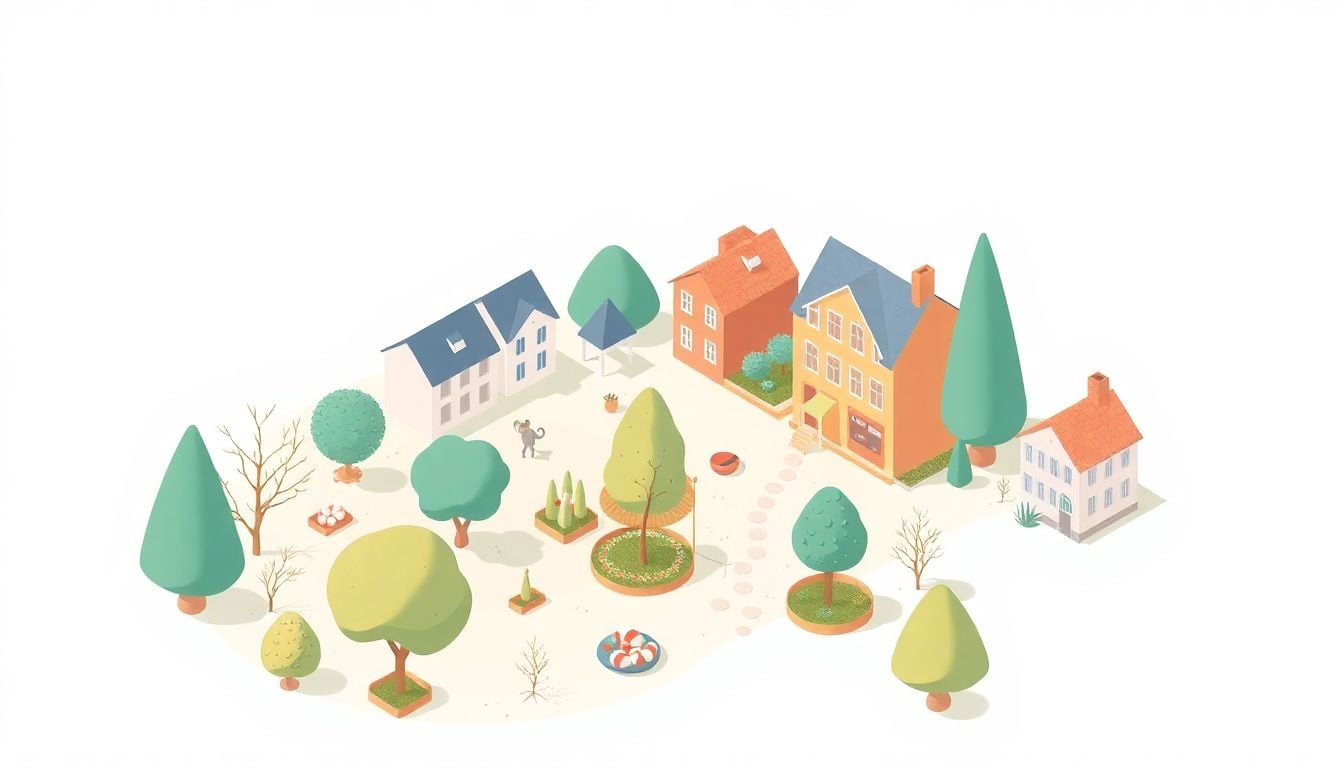
AI can be a real game-changer when it comes to creating isometric illustrations. It helps streamline processes that used to take hours or even days. Think of AI as your digital assistant that takes care of repetitive tasks and gives you a solid starting point. Using AI, you can generate complex isometric scenes quickly, saving you time for customization and fine-tuning. It can also help you experiment with different styles, perspectives, and color schemes without starting from scratch each time.
One way AI aids in isometric design is through automating perspective consistency. Maintaining the same angle and scale across all elements is tricky, but AI models can ensure that everything fits together seamlessly. Additionally, AI can suggest composition improvements or even propose new ideas you might not have considered. This assistance allows you to focus on creativity instead of worrying about technical accuracy.
For example, you might input a prompt asking AI to generate a busy city scene or a detailed office setup in isometric view. The AI then produces a draft that you can tweak further. Overall, AI helps you move from concept to draft swiftly, giving you more time for the creative polishing rather than initial setup.
Understanding the role of AI in this space is about recognizing it as a collaborator—something that can enhance your workflow, inspire new ideas, and reduce the time spent on mundane tasks. With AI assisting the heavy lifting, your focus can shift to adding your unique touch and style to each illustration.
Choosing the Right AI Tools for Isometric Illustration
Picking the best AI tools for creating isometric images isn’t about finding the most popular one but about identifying what fits your workflow. Some tools are designed explicitly for drafting and generating detailed visuals, while others excel at style transfer or editing. If you’re after quick mockups, options like Midjourney or DALL·E 2 are worth exploring because they generate high-quality images from text prompts.
For more control and customization, programs like Adobe Firefly or Clip Studio Paint with AI features can be handy. These tools allow you to refine AI-generated drafts, add shading, and adjust perspectives easily. Also, some dedicated isometric design platforms or plugins are making it easier to construct perfectly aligned scenes without manually drawing every element.
When evaluating AI tools, consider how well they handle perspective accuracy, their ease of use, and whether they support your preferred workflow. Compatibility with other design software is vital if you want to import, edit, or enhance the AI outputs later. Don’t forget to look into community reviews, tutorials, and sample images to gauge their real-world performance.
Remember, the right AI tool is the one that makes your creative process smoother, helps you generate ideas faster, and allows you to execute your vision without unnecessary hurdles. Take some time to test a few options and see which one clicks for your style and needs.

Creative Prompt Strategies to Get Better Results from ChatGPT
Crafting good prompts is key to making AI generate useful and relevant isometric illustrations. Instead of vague commands, detailed prompts give ChatGPT clearer instructions, leading to better outputs.
Start by specifying the style, scene, and details you want. For example, include prompts that request lighting, perspective, and color palette to get more accurate ideas.
Here are some example prompts you can copy and adapt for your needs:
- Generate a detailed isometric cityscape with modern buildings, sunny weather, and bustling streets in a clean, minimalist style.
- Describe an office setup in isometric view with desks, computers, chairs, and plants, emphasizing bright colors and a professional atmosphere.
- Create a vibrant isometric forest scene with multiple layers of trees, pathways, and wildlife, in a cartoonish style.
- Design an isometric scene of a tech startup office, with desks, whiteboards, gadgets, and employees, in a sleek and modern aesthetic.
- Generate a complex isometric diagram of a logistics warehouse with shelves, forklifts, and inventory, showing perspective and depth.
ChatGPT Prompt List for Isometric Illustration
To make your process easier, here’s a list of in-depth, ready-to-use ChatGPT prompts specifically designed for isometric illustration projects. Just copy and paste into ChatGPT to get started.
- Describe a busy city in isometric view with detailed buildings, roads, and urban elements, in a realistic style.
- Explain how to create a clean isometric floor plan for a small café including seating, counters, and decor, suitable for a beginner.
- Create a step-by-step guide for designing an isometric game level with terrain, pathways, and interactive objects.
- List common pitfalls in AI-generated isometric art and how to avoid them, with tips on prompt writing and editing.
- Provide a detailed prompt for generating an isometric interior design of a modern living room with natural light and minimalist furniture.
- Suggest ways to enhance AI-generated isometric images by adding shading, perspective correction, and color adjustments manually or via software.
- Draft a prompt to generate a fantasy isometric landscape with castles, forests, and mountains, emphasizing mood and atmosphere.
- Explain how to instruct ChatGPT to help refine and edit your AI-generated isometric images, including specific adjustments and improvements.
Using Prompt Variations to Experiment and Improve
Don’t be afraid to tweak and remix prompts to see what different outputs you can get. Slight changes, like specifying a color palette or perspective angle, can lead to fresh ideas.
For example, modify a prompt by asking for a “dark and moody” style or “bold, colorful” visuals. This helps you explore different aesthetics without starting from scratch.
Save your favorite prompts and variations; over time, you’ll build a personal toolkit of commands that produce consistent, high-quality results for your specific style.
Remember, the more precise and descriptive your prompts, the better the AI can understand and deliver what you’re imagining.

Effective Ways to Integrate AI-Generated Isometric Art into Your Workflow
Integrating AI-generated isometric illustrations smoothly into your existing process can boost productivity and creativity. Start by generating multiple drafts with AI to explore different compositions and styles.
Next, select the most promising AI outputs and import them into your preferred editing software for fine-tuning. Use tools like Photoshop or Krita to adjust colors, add details, or fix perspective inconsistencies.
Incorporate AI assets into your design pipeline by creating a set of reusable prompts to produce consistent styles across projects. This way, you save time by not starting from scratch each time.
Use AI-generated sketches as base layers, then build on them with manual editing or vectorization. This approach combines speed with control, resulting in high-quality, custom illustrations.
Remember to keep an organized folder system for your AI outputs, prompts, and edits so you can revisit and refine earlier projects easily. This helps streamline your process and encourages experimentation.
Finally, keep refining your prompts based on the outputs you get, always aiming to get closer to your vision with each iteration. Combining human touch with AI efficiency keeps your work unique and consistent.
How to Use ChatGPT to Generate Custom Prompts for Specific Isometric Scenes
Creating precise prompts for ChatGPT helps you get the exact ideas or instructions needed for your isometric projects. Start with clear, detailed descriptions of the scene, style, and elements you want.
Here are some example prompts you can copy, tweak, and use right away:
- Describe a vibrant isometric marketplace with stalls, shoppers, and colorful signage, in a cozy, rustic style.
- Explain how to design an isometric urban park with walking paths, benches, trees, and kids playing, emphasizing a natural, lively atmosphere.
- Create a step-by-step guide to drawing an isometric spaceship interior with consoles, crew members, and machinery, including perspective tips.
- List common issues when generating isometric images with AI and suggest practical solutions for each problem.
- Provide a detailed prompt to generate an isometric view of a futuristic city with flying vehicles, skyscrapers, and neon lights.
- Suggest ways to add shadows, depth, and color correction to AI-generated isometric scenes using popular editing software.
- Draft a prompt to create a fantasy village with houses, villagers, and market stalls, capturing a whimsical and inviting mood.
- Explain how to guide ChatGPT to help refine and improve your isometric scenes by offering specific improvements like perspective correction or color enhancements.
Creative Prompt List for Isometric Illustration Projects
Having a set of ready-to-go prompts makes your workflow faster and helps maintain style consistency. Here are powerful prompts you can copy into ChatGPT to generate ideas, instructions, or scene descriptions:
- Describe a busy, realistic isometric port with ships, cranes, cargo containers, and workers, in a detailed style.
- Explain how to sketch a simple, minimalist isometric bedroom layout with furniture, windows, and decor, suitable for beginners.
- Create an easy-to-follow guide for designing an isometric farming landscape with fields, barns, farm animals, and tractors.
- List common mistakes made in AI-generated isometric scenes and simple tips to correct perspective and scaling issues.
- Offer a prompt for generating an isometric workshop interior filled with tools, workbenches, machines, and workers in a realistic style.
- Suggest methods for manually enhancing AI images by adding shading, refining perspective, and correcting color imbalances.
- Generate a fantasy isometric castle surrounded by forests, mountains, and villagers, focusing on atmospheric details.
- Guide ChatGPT to help modify and improve your isometric art by requesting specific edits like fixing overlaps or enhancing depth.
FAQs
AI can enhance isometric illustrations by automating repetitive tasks, generating design elements, and providing creative suggestions, allowing artists to explore new styles and improve their workflow efficiency.
Essential AI tools for isometric design include Adobe Illustrator’s AI features, Figma with plugins, and specialized platforms like Artbreeder. These tools enhance creativity and streamline the design process, ensuring high-quality outputs.
When refining AI-generated images, consider adjusting colors, enhancing details, balancing elements, and applying consistent styling. This ensures that your final artwork aligns with your vision and meets your quality standards.
Common challenges include lack of creative control, inconsistent style, and difficulty in achieving specific designs. It’s essential to refine outputs and combine AI assistance with personal input for the best results.
Related Articles

Loyalty Program Tiers: AI Ideas For Enhanced Customer Engagement
I know managing loyalty programs can feel overwhelming, especially when trying to keep customers happy and engaged. The good news is, AI ideas for tier systems can make this process much easier and more fun. If you keep reading, I’ll show you how AI can help design, personalize, and automate loyalty tiers, making your program … Read more

Referral Program Copy AI: Boosting Your Business With AI Solutions
Ever wonder how to get more people to join your referral programs without sounding pushy or salesy? You’re not alone. Many businesses struggle to craft the perfect message that encourages sharing yet feels genuine. Keep reading, and you’ll discover how AI can help you create compelling referral copy effortlessly. In just a few minutes, you’ll … Read more

Growth Loop Ideas With AI: Strategies for Business Success
Hey, I get it—growing a business online can feel like a never-ending challenge, especially when figuring out how to keep users coming back. But here’s the good news: AI has some clever tricks up its sleeve that can create what’s called “growth loops”—little engines that fuel your growth automatically. Stick around, and I’ll show you … Read more

Experiment Log AI Template: Benefits, Features, and Guide
Ever tried keeping track of your experiments but felt overwhelmed by messy notes and incomplete data? I get it—staying organized can be a hassle, especially when juggling multiple projects. But don’t worry—there’s a simple way to make logging experiments easier and more accurate. Keep reading, and I’ll show you how using an AI-powered experiment log … Read more

A/B Test Hypothesis AI Templates: Enhance Your Testing Process
If you’re running A/B tests, you know coming up with good hypotheses can be tricky. Sometimes it feels like guessing, and that can slow things down. But what if there was a way to make your hypotheses smarter and easier to create? Keep reading, and I’ll show you how AI templates can help you craft … Read more
Innovation Backlog AI Template: Boosting Your Innovation Process
Ever felt overwhelmed trying to keep track of all your innovation ideas? It’s easy to get lost in the chaos of managing backlog items, especially when everyone’s busy. Keep reading, and I’ll show you how an AI-powered template can make sorting and organizing those ideas a lot simpler. In just a few steps, you’ll be … Read more

Ideation Sprint Agenda AI: Plan, Execute, and Succeed Efficiently
I know many of us find brainstorming sessions a bit chaotic or just not as productive as we’d like. The good news is, using AI in your ideation sprint can help smooth out those rough edges and spark fresh ideas. Stick with me, and I’ll show you how AI tools can make your next session … Read more

Brainstorming Facilitation AI Prompts: Enhance Your Creativity
If you’ve ever felt stuck trying to run creative brainstorming sessions, you’re not alone. It can sometimes be tough to keep ideas flowing or find fresh angles on a problem. But don’t worry—there’s a way to make your sessions more effective and fun. Keep reading, and I’ll show you how AI prompts can be your … Read more

Design Thinking Workshop With AI: Tips, Tools, And Best Practices
Hey there! If the idea of running a design thinking workshop with AI sounds a bit overwhelming, you’re not alone. It’s common to wonder how AI can fit into such a creative process and whether it’ll help or just complicate things. Stick with me, though, and I’ll show you how AI tools—like ChatGPT—can boost your … Read more
Service Blueprint AI Template: Enhance Business Efficiency Today
Getting your service processes straight can feel like a puzzle, especially when trying to keep everyone on the same page. That’s where a Service Blueprint AI Template comes in handy—think of it as a clear map for your customer experience. Keep reading and you might find an easy way to plan, improve, and customize your … Read more

Customer Journey Map AI Template: Enhance Insights and Experience
Ever felt frustrated trying to map out your customers’ journey without the right tools? You’re not alone. Luckily, there’s now an AI-powered customer journey map template that promises to make this process easier and smarter. Keep reading, and I’ll show you how these templates work, their benefits, and how you can start using them to … Read more

Value Chain Analysis AI Guide: Improve Efficiency and Insights
Ever wonder if there’s a smarter way to analyze your company’s value chain without drowning in boring spreadsheets? You’re not alone—many feel stuck with slow, manual methods that just don’t cut it anymore. Stick with me, and I’ll show you how AI can make this process easier, faster, and way more insightful. Keep reading, and … Read more
Last updated: October 2, 2025