Complete AI Prompt Pack
1000+ prompts • $37
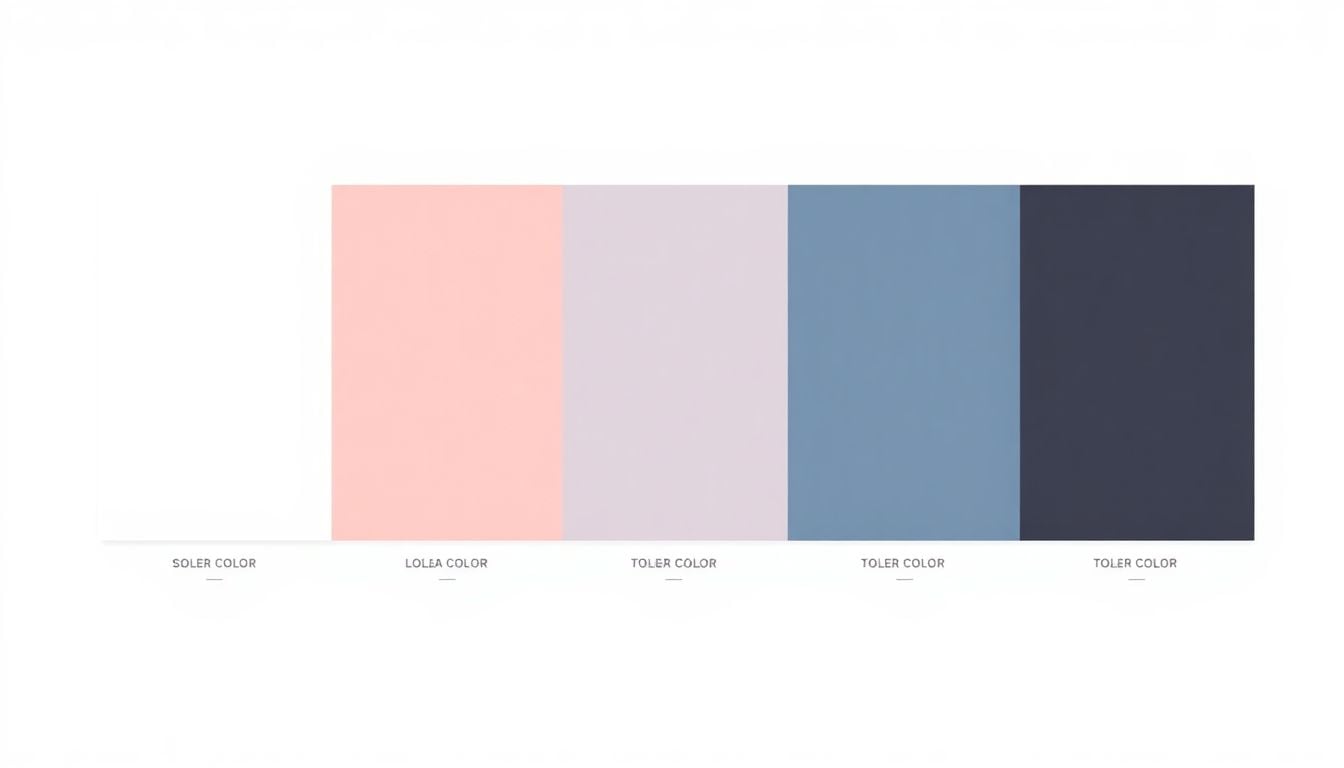
If you’ve ever felt stuck choosing colors that fit your project, you’re not alone. Picking the right palette can be a challenge, especially when you’re aiming for a cohesive look that speaks to your style. Luckily, ChatGPT can help by suggesting color schemes tailored to your needs, making the process much easier and more fun.
Keep reading, and you’ll learn how to craft prompts that generate stunning color palettes, see examples you can use directly, and discover tips to customize suggestions for any vibe or theme. By the end, you’ll feel more confident adding fresh color ideas to your creative toolkit—no art degree required!
Key Takeaways
- ChatGPT can effortlessly generate color palettes tailored to your project needs.
- Use specific keywords and style cues in your prompts to get effective color suggestions.
- Describe the mood, style, or theme clearly for targeted results, like “calming spa website.”
- Specify the number of colors and any color preferences or exclusions for better outcomes.
- Ready-to-use prompts help jump-start your color palette generation process.
- Combining multiple prompts can produce nuanced and comprehensive color palettes.

How to Get AI-Generated Color Palette Suggestions with ChatGPT
Getting AI to suggest color palettes is pretty straightforward once you know how to ask. Think of ChatGPT as your color assistant that responds to clear, detailed prompts. If you want to generate a palette that suits your project, start by framing your request with specific keywords and style cues.
Begin by describing the mood, style, or theme you’re aiming for. For example, say, “Suggest a color palette for a calming spa website.” This directs ChatGPT to focus on soothing colors. Then, you can specify the number of colors, such as, “Provide five main colors.” Alternatively, asking for complementary or analogous schemes can refine the output.
Here’s a simple step-by-step way to get effective suggestions:
- Describe the vibe or theme of your project (e.g., minimal, vibrant, elegant).
- Specify the number of colors you need (e.g., three, five, seven).
- Mention if you want a specific color inclusion or exclusion (e.g., avoid orange or include pastel shades).
- Use clear language like, “Generate a harmonious pastel color palette for a modern wedding website.”
For example, you can use prompts like:
- “Create a palette of five colors for a luxury brand logo in shades of gold and deep blue.”
- “Suggest a vibrant color scheme with four primary colors suitable for a children’s app.”
- “Provide a soft and muted color palette with six shades for a vintage-inspired packaging design.”
By crafting specific prompts, you guide ChatGPT to give you better-tailored color ideas that fit your design goals. Remember, the more detailed your description, the more relevant the AI’s color suggestions will be.
Using Prompts to Generate Color Palettes for Design Projects
Prompts are your best tool for coaxing AI into creating color schemes that match your project’s vibe. They act like instructions that tell ChatGPT what kind of colors you want. Think of prompts as recipes for results that save you time and give you creative starting points.
Start with broad prompts and then narrow down. For example, “Generate a soft color palette for a feminine skincare brand” gives a gentle, pastel-focused scheme. You can refine further with prompts like, “List five colors that work well together for a modern tech website, focusing on blue and gray tones.”
Using prompts in the right way helps you avoid generic suggestions and gets your design project moving faster. Here are some prompts you can copy-paste:
- “Suggest a minimalistic color palette for a boutique fashion store.”
- “Create a bold and energetic color scheme for a sports team logo.”
- “Provide a neutral color palette with five shades for a corporate presentation.”
By combining clear descriptions with specific instructions, your prompts will yield more precise and useful color options from ChatGPT.
Sample Prompts for AI Color Palette Suggestions
If you’re not sure how to ask, here are some ready-to-use prompts to get you started:
- “Generate a harmonious five-color palette inspired by sunset colors.”
- “Suggest a pastel color scheme suitable for a children’s book cover.”
- “List four contrasting colors that work well for a modern website background.”
- “Create a calming color palette with shades of green and blue for a wellness app.”
- “Provide an elegant color scheme with six muted tones for wedding invitations.”
Feel free to tweak these prompts based on your needs, adding details about mood, style, or specific color preferences to get the best results.

How to Write Specific Prompts to Narrow Down Color Suggestions
One of the best ways to get precise color palettes from ChatGPT is by crafting prompts that clearly define what you want.
Instead of vague requests, specify details like color mood, style, or purpose. For example, ask, “Generate a three-color palette for a modern, minimalist coffee shop.” This helps ChatGPT understand the context and deliver targeted results.
Use adjectives to describe the mood, such as “vibrant,” “calming,” or “luxurious,” to guide the AI toward the right vibe.
Make sure to specify the number of colors you need, like “Provide five harmonious shades for a vintage poster.” This keeps the output manageable and relevant.
If you want the palette to include or exclude certain colors, state that explicitly, as in “Suggest a palette with no reds.” Clear instructions lead to better results.
Remember, the more detailed your prompt, the more tailored the AI’s suggestions will be.
Key Prompts You Can Copy and Use Instantly for Better Color Ideas
- “Create a palette of six muted pastel shades inspired by early morning light.”
- “Suggest five bold colors that complement deep purple for a luxury branding project.”
- “Generate three contrasting colors suitable for a high-energy sports website.”
- “Provide a soft, earthy color scheme with seven shades for eco-friendly packaging.”
- “List four monochromatic shades of blue for corporate stationery.”
- “Create a vibrant color palette for a children’s educational app, including primary colors.”
- “Suggest a sophisticated color scheme with metallic accents for a jewelry brand.”
- “Generate a harmonious set of five shades inspired by sunset colors for a wedding invitation.”
Feel free to edit these prompts by adding or changing details to suit your project needs—they’re versatile starting points.
How to Combine Multiple Prompts for Layered Color Palette Ideas
If one prompt doesn’t give you quite what you’re looking for, try stacking or combining prompts for more nuanced results.
Start with a broad prompt like, “Suggest a color palette for a tropical-themed brand.” Then, refine with something more specific, such as, “Include shades of green, blue, and coral, avoiding dull colors.”
For example, you can instruct ChatGPT in parts: first ask for general colors, then add constraints—”Provide five colors inspired by ocean waves, excluding gray and black.”
Layering prompts helps you generate comprehensive palettes that match complex themes or styles.
Also, if you’re unsure, ask ChatGPT to give you a few options by prompting, “List three different color schemes for a minimalist tech startup.” This way, you get multiple ideas to choose from.
Remember, clarity and specificity are key – the more you tell ChatGPT, the better your final palette will fit your project.

How to Use AI to Fine-Tune Your Color Palettes for Different Audiences and Contexts
To make your color palettes resonate with specific audiences, you need to tailor prompts that reflect their preferences and expectations. Start by asking ChatGPT for colors that match the audience’s age group, cultural background, or industry standards. For instance, request, “Suggest a color palette for a teenage fashion brand,” or “Provide a professional color scheme suitable for finance apps.”
Incorporate descriptive words related to the target demographic or setting, like “fresh,” “playful,” or “trustworthy,” to guide the AI. For example, prompt ChatGPT with, “Generate a lively, youthful palette with five shades for a social media campaign aimed at teenagers.”
To refine further, specify the context—for example, “Create a calming color scheme suitable for a mental health app targeting seniors.” This helps ChatGPT suggest palettes that fit the specific needs of your project’s audience.
Mix and match prompts for layered suggestions, such as, “Suggest a set of colors that appeal to eco-conscious consumers, inspired by nature, avoiding bright neon tones.” This way, you get palettes that are both relevant and tailored, making your designs more effective.
Remember, clarity in your instructions is key. The more you specify age, culture, or purpose, the better the palette will connect with your intended viewers.
How to Save and Reuse Color Palette Prompts for Future Projects
Saving your favorite prompts makes it easy to generate consistent color schemes across multiple projects. Copy useful prompts into a document or note-taking app so you can paste them whenever needed. For example, save prompts like, “Create a calming palette inspired by ocean shades,” or “Suggest five vibrant colors for a digital marketing banner.”
Using templates ensures you don’t have to start from scratch each time. You can adapt your saved prompts with minor tweaks for different themes and styles. For example, change “ocean shades” to “sunset hues” depending on the project mood.
In ChatGPT, develop a list of core prompts for common design needs, and update it as you experiment with new styles. For instance, keep a list of prompts for branding, websites, packaging, and social media content.
It’s also smart to tag your saved prompts with keywords like “luxury,” “minimalist,” or “vibrant,” so you can quickly find the right one later. Having a library of ready-to-go prompts speeds up your workflow and keeps your color ideas consistent.
Finally, review your prompt library periodically to refine and delete outdated prompts, keeping your toolkit sharp and relevant.
How to Use AI to Generate Color Palettes with Different Color Models and Formats
When working with specific file formats or color models, your prompts should mention these requirements explicitly. For example, ask ChatGPT, “Suggest a color palette in hexadecimal codes for a website design,” or “Provide RGB values for a logo color scheme.”
If you need CMYK colors for printing, include that in your prompt: “Generate a five-color palette in CMYK format suitable for print packaging.” This helps ensure your AI suggestions align with the technical needs of your project.
For digital projects, requesting HEX or RGB codes makes it straightforward to implement the suggestions directly into your design software. “List five HEX color codes for a modern app interface” is a good example prompt.
For user interface and app design, asking for transparency or opacity values can be useful: “Create a semi-transparent color palette for overlay elements.” This allows for more versatile use of the palette in your designs.
When requesting multiple formats, you can prompt ChatGPT like this: “Provide a five-color palette in hexadecimal, RGB, and CMYK formats, inspired by a sunset.” This saves you time converting between color models later.
How to Get Consistent and Cohesive Color Palettes Over Time Using ChatGPT
Consistency is key in branding and design; to maintain it, use the same prompts or slight variations over multiple sessions. Save your favored prompts with specific stylistic cues embedded, like, “Suggest a cohesive five-color palette in HEX for a luxury accessories brand.”
To ensure cohesion, ask ChatGPT to generate palettes based on an initial theme or existing color: “Generate a complementary palette that matches this shade: #0d3b66.” This way, your palette remains aligned with your primary brand colors.
For ongoing projects, develop a set of standard prompts that deliver similar styles or moods, such as, “Create a muted earth-tone palette for a sustainability campaign.” Repeat these prompts in future work for consistent results.
Leverage the AI’s ability to understand your preferences by providing feedback, such as, “Make the palette more vibrant” or “Shift the palette toward cooler shades.” Use this feedback to generate iterative options that stay within your visual style.
By keeping your prompts focused and detailed, you can reliably generate color schemes that harmonize across different projects and media.
FAQs
Effective prompts should be clear and detailed, specifying the type of project, desired emotions, and any specific colors to include or avoid. For example, “Generate a pastel color palette for a calming wellness brand.”
Incorporate AI-generated palettes by integrating the colors directly into your design software. Use them as a base for your designs, adjusting as necessary to match your vision while maintaining coherence.
AI-generated color palettes can save time, offer unique combinations, and provide inspiration beyond traditional methods. They help streamline the design process by allowing designers to focus on creativity instead of color selection.
Yes, customize color palettes by specifying themes, moods, or target audiences in your prompts. Tailoring the input ensures that the generated palettes align more closely with your design needs and visual objectives.
Related Articles

Loyalty Program Tiers: AI Ideas For Enhanced Customer Engagement
I know managing loyalty programs can feel overwhelming, especially when trying to keep customers happy and engaged. The good news is, AI ideas for tier systems can make this process much easier and more fun. If you keep reading, I’ll show you how AI can help design, personalize, and automate loyalty tiers, making your program … Read more

Referral Program Copy AI: Boosting Your Business With AI Solutions
Ever wonder how to get more people to join your referral programs without sounding pushy or salesy? You’re not alone. Many businesses struggle to craft the perfect message that encourages sharing yet feels genuine. Keep reading, and you’ll discover how AI can help you create compelling referral copy effortlessly. In just a few minutes, you’ll … Read more

Growth Loop Ideas With AI: Strategies for Business Success
Hey, I get it—growing a business online can feel like a never-ending challenge, especially when figuring out how to keep users coming back. But here’s the good news: AI has some clever tricks up its sleeve that can create what’s called “growth loops”—little engines that fuel your growth automatically. Stick around, and I’ll show you … Read more

Experiment Log AI Template: Benefits, Features, and Guide
Ever tried keeping track of your experiments but felt overwhelmed by messy notes and incomplete data? I get it—staying organized can be a hassle, especially when juggling multiple projects. But don’t worry—there’s a simple way to make logging experiments easier and more accurate. Keep reading, and I’ll show you how using an AI-powered experiment log … Read more

A/B Test Hypothesis AI Templates: Enhance Your Testing Process
If you’re running A/B tests, you know coming up with good hypotheses can be tricky. Sometimes it feels like guessing, and that can slow things down. But what if there was a way to make your hypotheses smarter and easier to create? Keep reading, and I’ll show you how AI templates can help you craft … Read more

Innovation Backlog AI Template: Boosting Your Innovation Process
Ever felt overwhelmed trying to keep track of all your innovation ideas? It’s easy to get lost in the chaos of managing backlog items, especially when everyone’s busy. Keep reading, and I’ll show you how an AI-powered template can make sorting and organizing those ideas a lot simpler. In just a few steps, you’ll be … Read more

Ideation Sprint Agenda AI: Plan, Execute, and Succeed Efficiently
I know many of us find brainstorming sessions a bit chaotic or just not as productive as we’d like. The good news is, using AI in your ideation sprint can help smooth out those rough edges and spark fresh ideas. Stick with me, and I’ll show you how AI tools can make your next session … Read more

Brainstorming Facilitation AI Prompts: Enhance Your Creativity
If you’ve ever felt stuck trying to run creative brainstorming sessions, you’re not alone. It can sometimes be tough to keep ideas flowing or find fresh angles on a problem. But don’t worry—there’s a way to make your sessions more effective and fun. Keep reading, and I’ll show you how AI prompts can be your … Read more

Design Thinking Workshop With AI: Tips, Tools, And Best Practices
Hey there! If the idea of running a design thinking workshop with AI sounds a bit overwhelming, you’re not alone. It’s common to wonder how AI can fit into such a creative process and whether it’ll help or just complicate things. Stick with me, though, and I’ll show you how AI tools—like ChatGPT—can boost your … Read more
Service Blueprint AI Template: Enhance Business Efficiency Today
Getting your service processes straight can feel like a puzzle, especially when trying to keep everyone on the same page. That’s where a Service Blueprint AI Template comes in handy—think of it as a clear map for your customer experience. Keep reading and you might find an easy way to plan, improve, and customize your … Read more

Customer Journey Map AI Template: Enhance Insights and Experience
Ever felt frustrated trying to map out your customers’ journey without the right tools? You’re not alone. Luckily, there’s now an AI-powered customer journey map template that promises to make this process easier and smarter. Keep reading, and I’ll show you how these templates work, their benefits, and how you can start using them to … Read more

Value Chain Analysis AI Guide: Improve Efficiency and Insights
Ever wonder if there’s a smarter way to analyze your company’s value chain without drowning in boring spreadsheets? You’re not alone—many feel stuck with slow, manual methods that just don’t cut it anymore. Stick with me, and I’ll show you how AI can make this process easier, faster, and way more insightful. Keep reading, and … Read more
Last updated: October 3, 2025